 LudyAmp
 How to Stream Music from Your NAS to iPhone
Learn how to stream music from NAS to iPhone over SMB. Full setup guide for Synology, QNAP, or any NAS with FLAC and lossless library playback and offline sync.
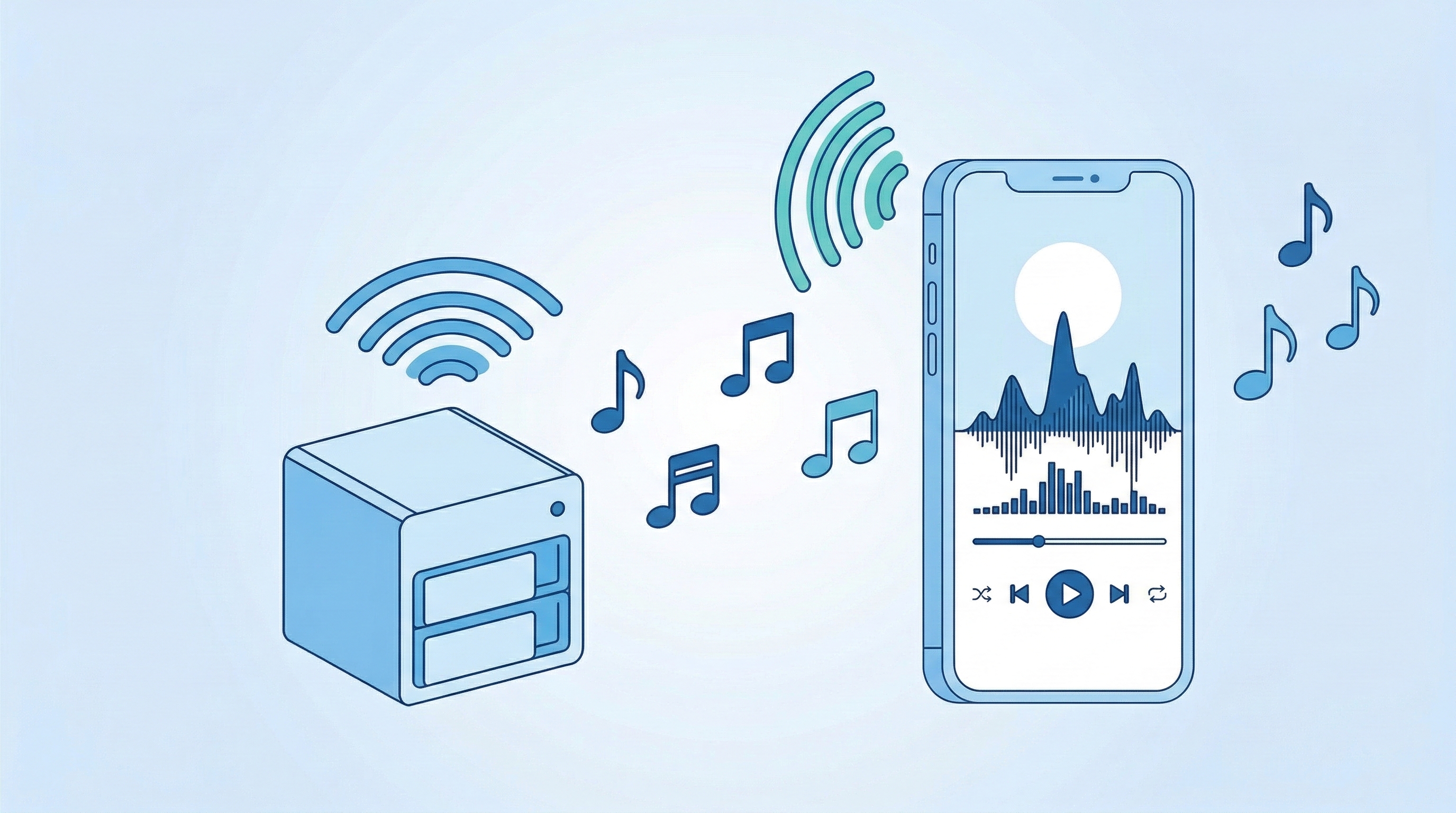
If you want to stream music from NAS to iPhone, this is the guide for you. A NAS full of music plus an iPhone is genuinely the best setup for anyone who wants to own their library and not depend on Spotify or Apple Music. You keep everything on hardware you control, stream it over your home network, and download albums for offline listening when you leave the house. No monthly fees, no catalog disappearing because of licensing disputes, no algorithmic playlists deciding what you should hear next.
I switched to this setup about two years ago after getting tired of re-uploading my library every time a streaming service changed their import rules. Here’s how to set it up.
Why NAS Over Cloud Storage
The obvious alternative is dumping your music on iCloud Drive or Google Drive and streaming from there. That works for small collections, but it falls apart fast.
A modest FLAC library — say 800 albums — runs about 400 GB. iCloud gives you 50 GB free, and the 2TB plan is $10/month. Google Drive’s 2TB plan is $10/month too. At that point, you’re paying the same as a Spotify subscription, except you also have to manage uploads and deal with spotty cloud sync.
A NAS sits on your local network. Transfer speeds are 50-100 MB/s over a wired connection, or 20-40 MB/s over WiFi. There’s no monthly cost after the hardware purchase. A Synology DS223 with two 4TB drives runs about $400 total and gives you enough storage for roughly 20,000 albums in FLAC. That’s a one-time cost that pays for itself in under four years versus any cloud subscription.
And the big one: your NAS works even when your internet is down. Cloud streaming doesn’t.
Protocols: SMB, DLNA, and WebDAV
Your NAS can share files over several protocols. Here’s what matters for music streaming:
SMB (Server Message Block) is the most common and the best option for music. It’s the same protocol your Mac uses when you connect to a network drive in Finder. SMB v2 and v3 are fast, secure, and supported by basically every NAS and every music player app worth using. This is what I recommend.
DLNA / UPnP is an older protocol designed specifically for media streaming. Some NAS devices run a DLNA server (Synology’s is called “Media Server”). It works, but DLNA players on iOS are rare and generally clunky. The protocol also doesn’t handle large libraries well — browsing 10,000+ tracks over DLNA is painfully slow.
WebDAV shows up occasionally but it’s slower than SMB for file browsing and not widely supported by music players. Skip it unless you have a specific reason.
Stick with SMB. It’s the right answer 95% of the time.
Setting Up Your NAS
Synology
Open DSM (your Synology’s web interface, usually at http://your-nas-ip:5000), then:
- Go to Control Panel > File Services > SMB
- Make sure Enable SMB service is checked
- Under Advanced Settings, set the minimum protocol to SMB2 (SMB1 has known security issues — don’t use it)
- Go to Control Panel > Shared Folder
- Create a folder called
Musicif you don’t have one already - Set permissions so your user account has read access (and write access if you want to manage files from your phone)
Note your NAS’s local IP address. You’ll find it in Control Panel > Network > Network Interface. It’ll look something like 192.168.1.50. Write this down.
QNAP
Open QTS (your QNAP’s web interface), then:
- Go to Control Panel > Network & File Services > Win/Mac/NFS/WebDAV > Microsoft Networking
- Enable Microsoft Networking (this is QNAP’s name for SMB)
- Set the minimum protocol to SMB2
- Create or identify your music shared folder under Control Panel > Privilege > Shared Folders
Same deal — note the IP address from Control Panel > Network > TCP/IP.
Shared Folder on Mac or Windows
You don’t actually need a dedicated NAS. Any computer with file sharing enabled works as a basic music server.
On Mac: Open System Settings > General > Sharing > File Sharing. Add your music folder to the shared folders list. Your Mac’s local IP is in System Settings > Network.
On Windows: Right-click your music folder, go to Properties > Sharing > Share. Make sure network discovery is enabled in Network and Sharing Center.
The downside of using a computer instead of a NAS is that the computer needs to be on whenever you want to stream. A NAS runs 24/7 and uses about 15-30 watts — less than a light bulb.
Organizing Your Music Library
Before connecting, take a minute to organize your NAS. The folder structure matters because most music players browse NAS shares by folder, not by metadata.
The standard approach that every music player handles well:
Music/
  Artist Name/
    Album Name (Year)/
      01 - Track Title.flac
      02 - Track Title.flac
      cover.jpg
Keep album art in the folder as cover.jpg or folder.jpg. Most players will pick this up automatically. If you don’t have embedded album art in your FLAC files, the folder image is your fallback.
Tools like MusicBrainz Picard (free, cross-platform) can automatically organize and tag your entire library in this structure. Point it at your messy music folder, let it identify albums, and it’ll rename and move everything. I ran this on my 600+ album collection and it sorted out years of inconsistent naming in about an hour.
Connecting from Your iPhone
Now the good part. Open LudyAmp and go to the server browser. Tap “Add Server” and enter:
- Address: Your NAS’s IP address (e.g.,
192.168.1.50) - Username: Your NAS user account
- Password: Your NAS password
- Share name: The shared folder name (e.g.,
Music)
Tap connect, and you should see your folder structure. Navigate into any album folder and you’ll see your tracks listed with metadata pulled from the files.
Make sure your iPhone is on the same WiFi network as your NAS. SMB is a local network protocol — it won’t work over cellular unless you set up a VPN to your home network (which is a whole separate topic).
Browsing and Playing
Once connected, you browse your NAS just like a file manager. Tap into an artist folder, then an album, then tap a track to start playing. LudyAmp reads the metadata from each file as you browse, so you get track titles, album art, and duration even before you play anything.
You can queue up an entire album by tapping the album folder’s play button. Tracks play in order with gapless transitions — important for live albums and concept records where tracks flow into each other.
Creating playlists from NAS content works the same as local files. Long-press a track or album, add to playlist, done. The playlist remembers the NAS path, so next time you open it, it connects and starts streaming.
Offline Sync
This is the feature that makes the NAS setup practical for daily use. Before you leave your house, mark a few albums for offline download. LudyAmp pulls them from your NAS over WiFi and stores them locally on your iPhone.
When you’re on the train, at the gym, or anywhere without your home network, those albums play from local storage. When you get home and reconnect to WiFi, you can swap out the offline albums for different ones.
A 256GB iPhone can comfortably hold 200-300 FLAC albums offline while still having plenty of room for apps and photos. If space is tight, you can always keep your most-played albums offline and stream the rest when you’re home.
Troubleshooting
Can’t find NAS on the network: Double-check that your iPhone and NAS are on the same WiFi network. Some routers isolate the 2.4GHz and 5GHz bands into separate networks — make sure both devices are on the same one. Also verify that SMB is enabled on your NAS.
Connection drops during playback: This usually means your WiFi signal is weak. SMB streaming needs a stable connection. If you’re far from your router, consider a WiFi extender or mesh system. Alternatively, download albums for offline use instead of streaming.
Slow browsing with large libraries: If you have 50,000+ files, initial folder scanning can take a moment. Once the player caches the directory listing, subsequent browsing is instant. Keeping your library well-organized in folders (rather than dumping thousands of files in one directory) helps a lot.
SMB authentication errors: Some NAS devices default to SMB1 for compatibility. Make sure you’re using SMB2 or SMB3 — it’s faster and more secure. Also check that your NAS user account has read permission on the shared folder.
Tips for the Best Experience
Keep your music in FLAC or ALAC. Both are lossless and both stream perfectly over SMB. If you’re not sure which to pick, read FLAC vs ALAC: Which Lossless Format for iPhone?.
Use a wired connection for your NAS. Even if your iPhone connects over WiFi, having the NAS on ethernet eliminates one wireless hop and makes streaming more reliable.
Set a static IP for your NAS (or use a DHCP reservation in your router). If your NAS’s IP changes, your saved connection in LudyAmp will stop working until you update it.
If you’re new to FLAC files on iPhone in general, I covered all the basics in How to Play FLAC Files on iPhone, including other transfer methods beyond NAS streaming.