 LudyType
 How to Fix Grammar on iPhone: 5 Ways Beyond Autocorrect
iPhone autocorrect catches typos but misses real grammar errors. Here are five tested ways to fix grammar on iPhone, from free built-in tools to AI keyboards.
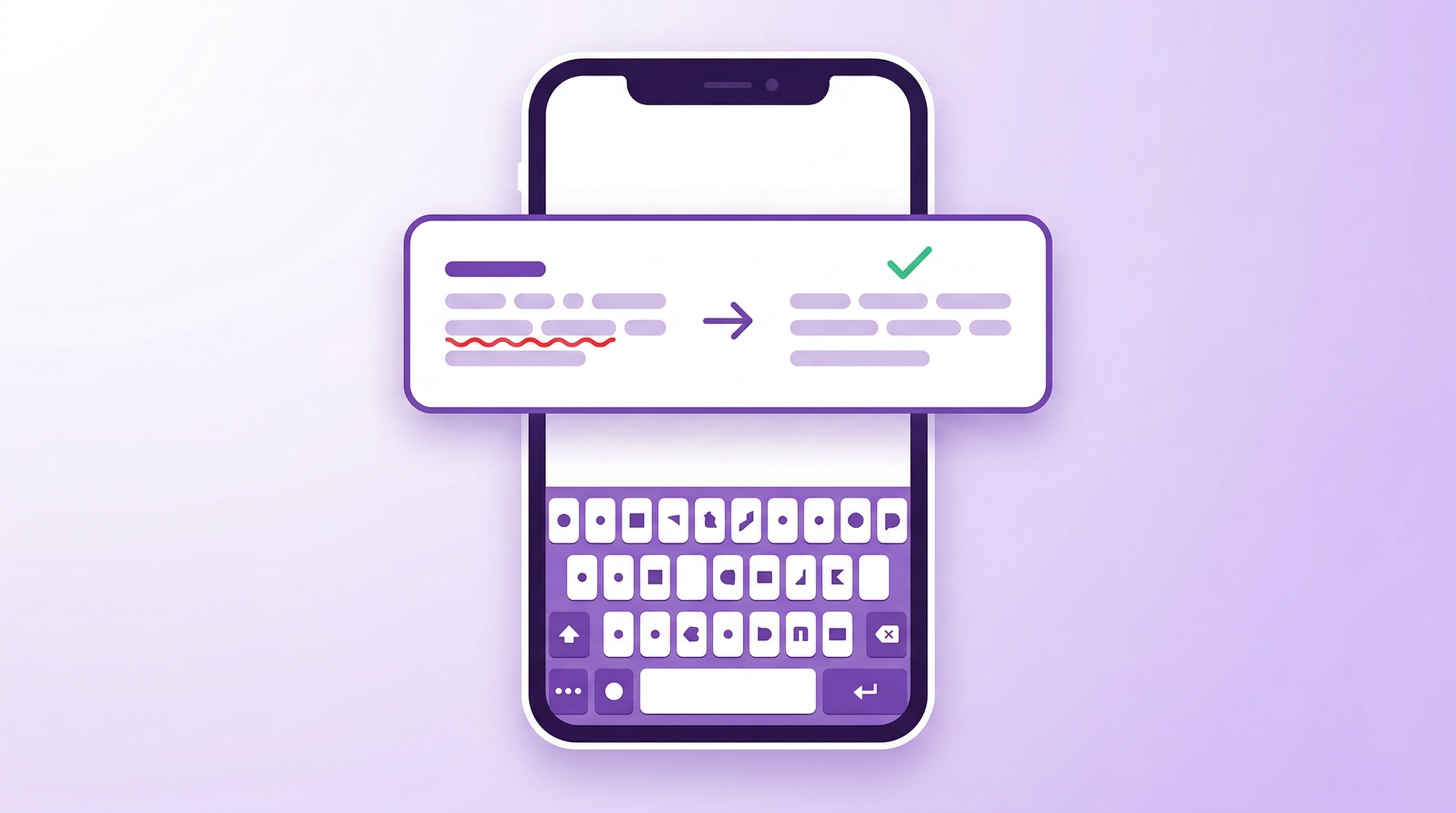
iPhone autocorrect is great at fixing typos. It’ll turn “teh” into “the” and “adn” into “and” all day long. But actual grammar? Not so much.
“Their going to the store” sails right through. “I could of done that” gets a pass. “Your welcome” — no problem, says autocorrect. These are the mistakes that make you look careless in work emails and group chats, and Apple’s built-in keyboard does nothing about them.
Here are five ways to actually catch grammar mistakes on iPhone, ranked from free and limited to paid and thorough.
Method 1: Tweak Your Autocorrect Settings
Before installing anything, make sure you have Apple’s built-in tools turned on. Go to Settings > General > Keyboard and check that Auto-Correction and Check Spelling are both enabled. On iOS 18+, there’s also a Predictive Text toggle that helps with word completion.
This catches obvious typos and misspellings. It won’t catch grammatical errors. “I seen it yesterday” will never get flagged. “Me and him went to lunch” is fine as far as autocorrect is concerned. The system is designed for spelling, not grammar, and that’s a hard limit.
Best for: people who just want to make sure typos get caught. It’s already on your phone.
Method 2: Apple Intelligence Writing Tools (iOS 18.1+)
Apple added Writing Tools in iOS 18.1 as part of Apple Intelligence. You can select text in most apps, tap “Writing Tools” in the context menu, and get options like Proofread, Rewrite, Friendly, Professional, and Concise.
The Proofread option is the closest thing to a grammar checker. It catches subject-verb agreement, tense consistency, and some punctuation errors. The Rewrite option goes further and rephrases your text entirely.
The catch: you need an iPhone 15 Pro or newer. iPhone 15, 14, 13, SE — none of them support Apple Intelligence. If you have an older phone, this option simply doesn’t exist for you.
Even on supported devices, Writing Tools only works in apps that support text selection. It’s not active while you’re typing — you write your text first, select it, then run the tool. It adds steps.
Best for: iPhone 15 Pro+ users who want free grammar checking and don’t mind the extra taps.
Method 3: Grammarly Keyboard
Grammarly is the gold standard for grammar checking. The iPhone keyboard catches things that nothing else does — dangling modifiers, comma splices, pronoun reference errors, passive voice overuse. It underlines errors as you type and suggests corrections in real time.
The free tier handles basic grammar and spelling. The Premium plan ($30/month or $144/year) adds clarity suggestions, tone detection, full-sentence rewrites, and plagiarism checking.
That price is steep for a mobile keyboard. If you already pay for Grammarly for work on your desktop, the iPhone keyboard is included in your subscription and it’s a no-brainer. But paying $360/year specifically for phone typing is hard to justify for most people.
Grammarly also only does grammar. No translation, no clipboard history, no AI text generation. It does one thing, and it does it better than anyone else.
Best for: professional writers, non-native English speakers, anyone who needs the absolute best grammar engine and already has a Grammarly subscription.
Method 4: Gboard by Google
Gboard has better autocorrect than the stock iPhone keyboard. Its predictions are more contextual, swipe typing is smoother, and it learns your vocabulary faster. It also bundles in translate, GIF search, and voice typing.
But there’s no dedicated grammar checking feature. Gboard won’t flag “their” vs. “they’re” or “its” vs. “it’s.” The improved autocorrect catches more typos than Apple’s, but the grammar gap is roughly the same.
It’s free and it’s a genuinely better typing experience than stock. Just don’t expect it to fix your grammar.
Best for: people who want a better free keyboard with extras like translate and search built in.
Method 5: LudyType AI Keyboard
LudyType takes a different approach. Instead of checking grammar in real time as you type, it has a “Fix Grammar” action that you trigger when you’re done writing. Type your message, tap the AI button on the keyboard, select Fix Grammar, and your text gets rewritten with correct grammar, punctuation, and spelling.
It’s not just grammar though — there are 20+ AI actions. Change the tone to professional, casual, or friendly. Translate to 40+ languages. Summarize long text. Expand a quick note into a full paragraph. You can create custom actions with your own prompts too.
The pricing is different from the subscription model: $19.90 one-time purchase for lifetime access. There’s a free tier with 70 lifetime actions (10 per day) so you can test it first. If you bring your own API key (OpenAI, Anthropic, or Google), the AI processing runs on your own account at cost.
Clipboard history with 100 items and pinning is included, which is a separate problem solver.
Best for: people who want grammar checking plus other AI features without a monthly subscription.
Before and After: The Same Sentence, Five Ways
Here’s a sentence with typical grammar issues: “Me and john should of went to the meeting but we was running late and couldnt make it.”
Stock autocorrect: “Me and john should of went to the meeting but we was running late and couldn’t make it.” (Only fixes “couldnt” to “couldn’t.” Everything else passes.)
Apple Intelligence Proofread: “John and I should have gone to the meeting, but we were running late and couldn’t make it.” (Solid fix. Requires iPhone 15 Pro+.)
Grammarly: “John and I should have gone to the meeting, but we were running late and couldn’t make it.” (Same quality. Catches everything, capitalizes “John,” fixes verb agreement.)
LudyType Fix Grammar: “John and I should have gone to the meeting, but we were running late and couldn’t make it.” (Comparable result. Also available as one-tap action.)
Quick Comparison
| Stock Keyboard | Apple Intelligence | Grammarly | Gboard | LudyType | |
|---|---|---|---|---|---|
| Price | Free | Free | $30/mo | Free | $19.90 once |
| Grammar quality | Typos only | Good | Excellent | Typos only | Good |
| Works while typing | Yes | No (post-write) | Yes | Yes | No (post-write) |
| Translation | No | No | No | Yes | Yes (40+ langs) |
| Clipboard history | No | No | No | No | Yes (100 items) |
| Device requirement | Any iPhone | iPhone 15 Pro+ | Any iPhone | Any iPhone | Any iPhone |
Which One Should You Use?
If grammar is your number one priority and you write professionally, Grammarly is still the best engine out there. The subscription cost is easier to swallow if you use it on desktop too.
If you have an iPhone 15 Pro or newer and don’t want to install anything, Apple Intelligence Writing Tools are a solid free option for occasional grammar fixes.
If you want grammar checking plus translation, clipboard history, and other AI features at a one-time cost, LudyType covers more ground per dollar than anything else on this list.
And if you just want better autocorrect without paying anything, Gboard is a clear upgrade over the stock keyboard.
Check out our comparison of the best AI keyboards for iPhone for a deeper look at each option, or read about Grammarly alternatives if you’re specifically looking to replace Grammarly with something less expensive.