 LudyType
 How to Translate Text on iPhone Without Switching Apps
Stop copy-pasting between apps to translate text on iPhone. Four practical ways to translate directly from your keyboard without switching apps at all.
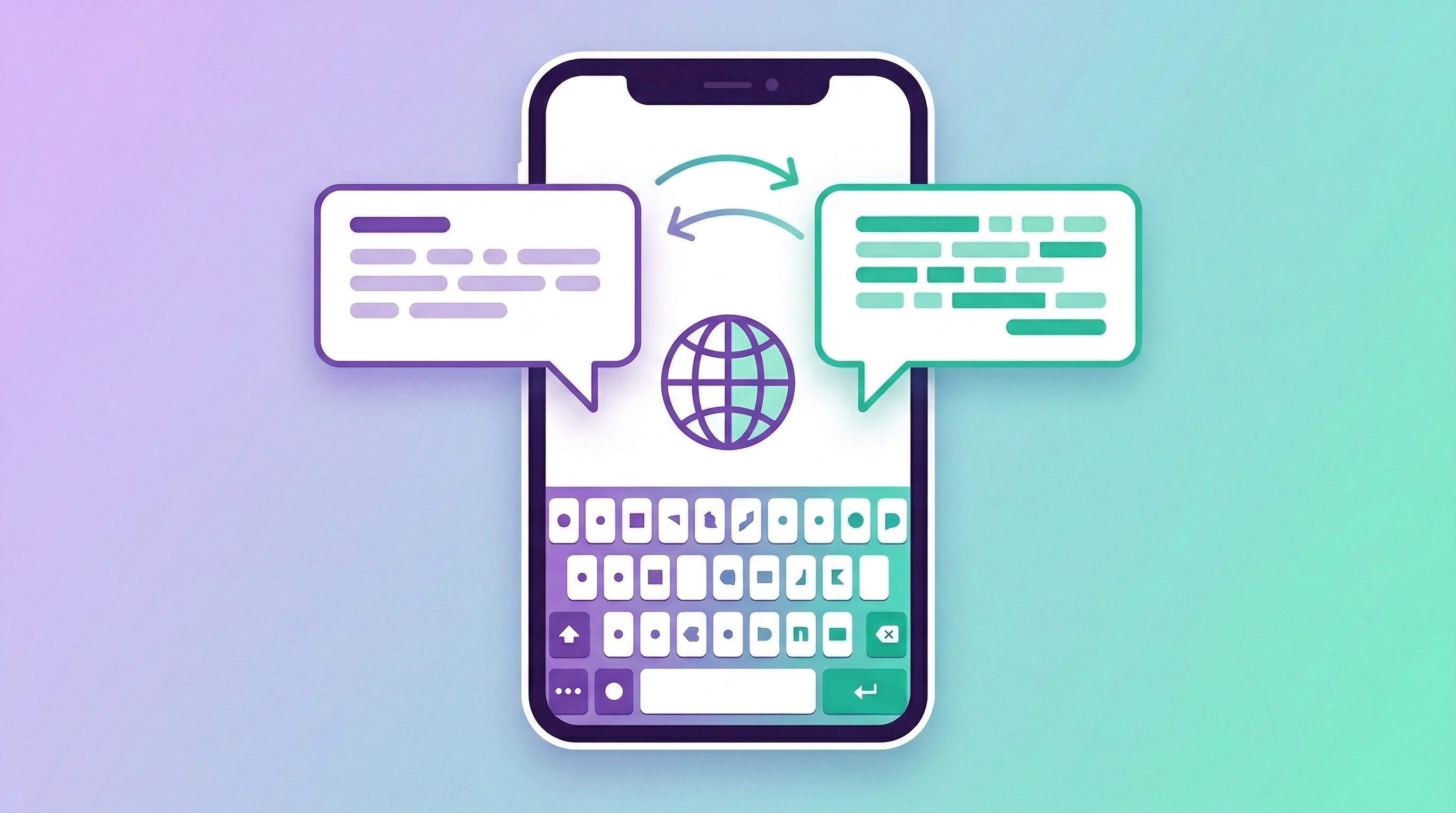
The normal way to translate something on iPhone goes like this: select text, copy, switch to the Translate app, paste, wait for the translation, copy the result, switch back to your original app, paste. Six steps and two app switches just to translate a sentence.
If you’re texting someone in another language or replying to a foreign-language email, doing this dance for every message gets old fast. Here are four ways to translate without leaving whatever app you’re in.
Method 1: Apple Translate App
Apple’s built-in Translate app handles 20+ languages and works offline once you download the language packs. The translation quality is decent for common languages like Spanish, French, German, and Chinese. It struggles more with less common languages and with slang or informal text.
Starting with iOS 15, you can select text in some apps and tap “Translate” in the context menu. This is better than the copy-paste-switch workflow, but it opens a translation popover rather than replacing your text. You still have to copy the result and paste it manually.
The bigger issue is that the context menu translation doesn’t work everywhere. It works in Safari, Notes, and Mail, but not in third-party apps like WhatsApp, Telegram, or Slack. The apps where you probably need translation most are exactly the ones where it’s not available.
Best for: translating web pages in Safari or text in Apple’s own apps.
Method 2: Gboard Translate Feature
Google’s Gboard keyboard has translate built into the keyboard itself. Tap the Google icon, select Translate, pick your target language, and whatever you type gets translated in real time before it’s inserted.
This is actually a nice implementation. You don’t leave your app, and the translation happens as you type. The problem is reliability — the translate feature sometimes doesn’t show up, or it takes a while to connect. Language support is good (Google Translate covers 100+ languages), but the keyboard interface only surfaces a subset of them.
The real-time typing approach also means you can’t translate text you received. If someone sends you a message in Portuguese and you want to understand it, Gboard translate won’t help — it only translates what you’re typing out, not incoming text.
Best for: typing messages in another language when you know what you want to say in English first.
Method 3: Safari Translate for Web Pages
If you’re browsing a foreign-language website in Safari, you can tap the page settings icon (the “aA” button in the address bar) and select “Translate to English” (or whatever your preferred language is). The entire page gets translated in place.
This works really well for reading foreign news sites, shopping on international websites, or researching something that only has good results in another language. Apple’s translation quality for web pages is solid, and it preserves the page layout.
The obvious limitation: it only works in Safari, and only for web pages. You can’t use it for text messages, emails, or anything outside of the browser.
Best for: reading foreign-language websites.
Method 4: LudyType Translate Action
LudyType has a translate action built into the keyboard that works in any app. The workflow is simple: type or paste your text, tap the AI button on the keyboard, select Translate, pick the target language, and the translated text replaces the original.
This works both ways. You can type a message in English and translate it to Japanese before sending. Or you can paste an incoming Spanish message into a text field and translate it to English to understand it. It works in Messages, WhatsApp, Mail, Slack, Notes — any app where you can type.
Language support covers 40+ languages: Spanish, French, German, Italian, Portuguese, Chinese (Simplified and Traditional), Japanese, Korean, Arabic, Hindi, Russian, Turkish, Vietnamese, Thai, Indonesian, and plenty more.
The step-by-step looks like this:
- Type your message or paste the text you want to translate
- Tap the AI action button on the LudyType keyboard
- Select “Translate” from the action list
- Choose your target language
- The translated text replaces the original
If you translate to the same language frequently, you can create a custom action. Set up a “Translate to Japanese” action once, and it becomes a one-tap operation every time. Same for “Translate to Spanish” or whatever you use most.
Which Approach Works Best?
For web browsing, Safari’s built-in translation is hard to beat. It translates entire pages in context without any extra apps.
For typing in another language, Gboard’s real-time translate is clever, though it can be finicky about when the feature appears.
For everything else — translating incoming messages, converting text in non-Apple apps, quick translations in WhatsApp or Slack — a keyboard with built-in translate like LudyType is the most flexible option. The one-time $19.90 price also means you’re not adding another subscription for a feature you use daily.
A Note for Travelers
If you’re traveling abroad and need quick translations constantly, set up dedicated custom actions in LudyType for your destination’s language. “Translate to Thai” or “Translate to Italian” as a single tap saves real time when you’re trying to communicate at a restaurant or ask for directions.
Pair that with downloading Apple Translate’s offline language packs (Settings > Apps > Translate > Downloaded Languages) as a backup for when you don’t have data. Between the two, you’re covered whether you have internet or not.
For more on AI keyboards that help with translation and other tasks, check out our best AI keyboard comparison. And if grammar is more your concern than translation, we covered 5 ways to fix grammar on iPhone separately.